GateClerk works with any standard 80mm USB thermal receipt printer. The GateClerk Desktop App prints silently to whatever printer is set as your Windows default — no special configuration needed. If you need to buy one, here are our top picks.
The industry standard for serious venues. Star Micronics printers are built for high-volume, race-night reliability — fast print speed, rock-solid auto-cut, and they just work. The TSP100III is plug-and-play on Windows with no driver hassle. If you're running multiple gates or can't afford a printer going down on race night, this is what you want. Used by restaurants, stadiums, and race tracks worldwide.
Another rock-solid Star option — slightly older model but equally reliable and often available at a lower price. Same commercial-grade auto-cutter and fast print speed as the TSP100III. Great if you find one at a deal.
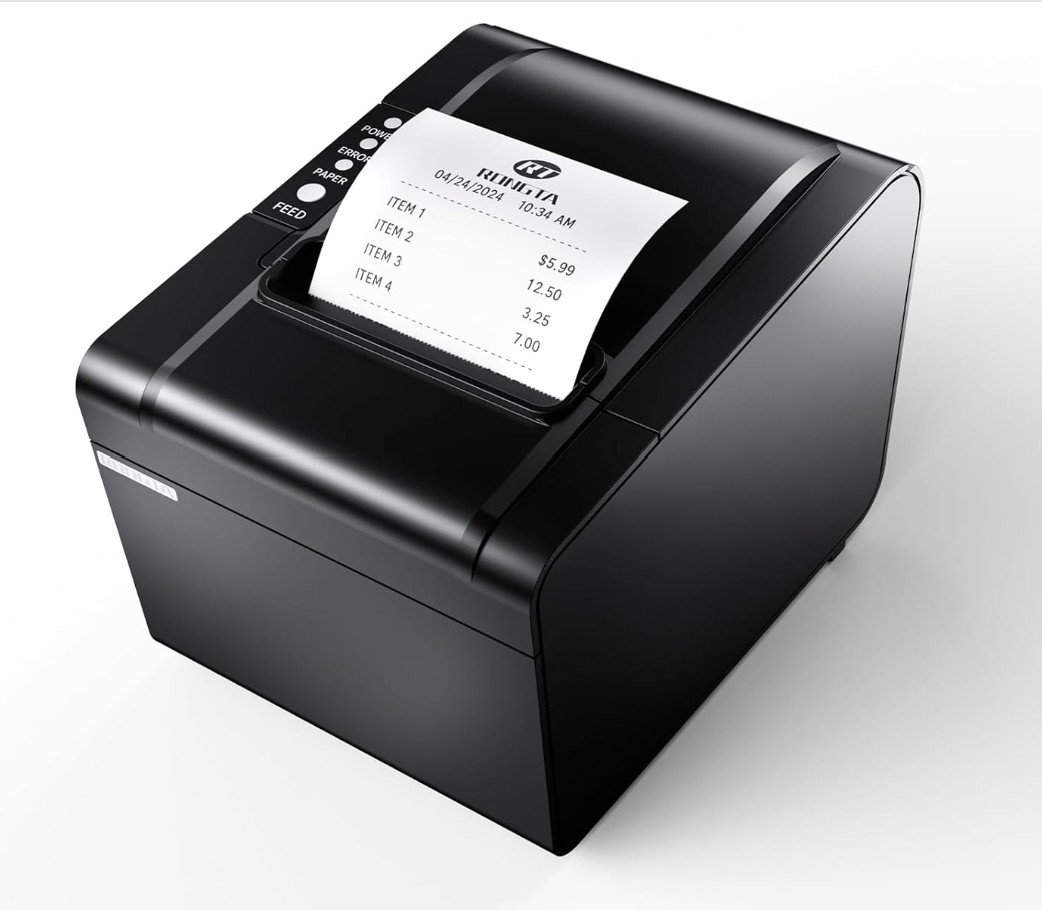
A solid, affordable choice for track owners who want reliable USB printing without breaking the bank. Fast print speed, clean auto-cut on every ticket, and works with standard 3 1/8" thermal paper rolls. Requires a one-time driver install from the official Rongta website — takes about 5 minutes.
⚠️ Only download drivers from the official Rongta website above. Third-party driver sites are a common source of malware.
View on Amazon →Any standard 80mm USB thermal printer works with GateClerk. Install the driver from your manufacturer's website, set it as your default printer in Windows, and you're ready. The GateClerk Desktop App always prints to whatever is set as the Windows default printer.
GateClerk requires the free Windows Desktop App at each gate. Any Windows 10 or 11 laptop works. Already have one collecting dust? Install the app and you're ready to sell tickets tonight.
Got a Windows laptop collecting dust? You already have your ticket seller. Download the free GateClerk Desktop App from your Settings page, plug in a USB thermal printer, and you're selling tickets tonight. No purchase required.
All printers above use standard 3 1/8" (80mm) thermal paper rolls. No ink needed — thermal printers use heat to print. Pick up a pack at any office supply store or order in bulk on Amazon. Stock up before race night.
Standard 80mm × 80mm thermal paper rolls. No ink needed — thermal printers use heat to print. Any brand works. Buy in bulk and keep a spare roll at each gate station.
Running a gate table outdoors with no power outlet? A high-capacity power bank keeps your laptop and printer running all night. Look for one with both USB-A and USB-C outputs — USB-A for the printer, USB-C for the laptop. Available same-day at most Walmart, Target, and office supply stores.
Some laptops charge via AC adapter only (no USB-C power delivery), and AC-powered printers like the Star TSP143 need a real 110V outlet. A portable power station covers both. Runs a laptop and printer all night on a single charge. Overkill for most setups — but essential if you're running a permanent-style booth outdoors with no power access.
GateClerk Plus accounts can process credit and debit cards directly at the gate terminal through Stripe. A USB magnetic stripe reader makes card entry instant — swipe the card and the number populates automatically. No manual typing, no errors. The reader plugs into any USB port and requires no drivers or software — Windows recognizes it as a keyboard.
Plug-and-play USB card reader that works like a keyboard — swipe a card and it instantly types the card number into the Stripe payment form. No drivers, no software, no pairing. Works on any Windows laptop running the GateClerk Desktop App. Reads standard credit and debit card magnetic stripes. MagTek is the industry standard brand for mag stripe readers — look for any MagTek USB HID model.
No — it's optional. If you have a Plus account with Stripe connected, gate staff can type card details manually into the payment form. The USB reader just makes it faster and eliminates typos. You can start processing cards tonight with no additional hardware, and add a reader later if you want to speed things up.
To accept cards at your gate terminal, you need a GateClerk Plus subscription and an active Stripe account connected in Settings. Once connected, enable the "Card Processing at Gate Terminals" toggle. Your gate terminal will automatically detect that card processing is active.
One-Time Setup Per Gate Station
Install your printer driver
Download the Windows driver from your printer manufacturer's website and run the installer. For Star Micronics printers, drivers are at starmicronics.com/support. For Rongta, use rongtatech.com. Never use third-party driver sites.
Load paper and plug in the printer
Load a 3 1/8" (80mm) thermal paper roll — open the lid, drop the roll in, pull the paper through the slot, close the lid. Plug the USB cable into your laptop.
Set the printer as default in Windows
Go to Windows Settings → Bluetooth & devices → Printers & scanners, click your thermal printer, and select Set as default. The GateClerk app always prints to the Windows default printer.
Download and install the GateClerk Desktop App
Log into your GateClerk account and go to Settings → GateClerk Gate Terminal App. Click Download Installer and run it. If Windows shows a SmartScreen warning, click More info → Run anyway.
Enter your venue shortcode
The first time the app launches it asks for your venue shortcode. Find it in Settings → Gate Login Link. Enter it once — the app saves it and opens your gate login automatically on every future launch.
Test a sale
Log in with your gate PIN, select an event, add a ticket to the cart, and checkout. The ticket prints automatically and the printer cuts it. You're ready for race night.
Ready to Set Up GateClerk?
Get your account started today. If you already have a laptop and a USB thermal printer, you could be running your first event on GateClerk tonight.
Create Your Account →